
Close Menu

    Subscribe to Updates

    Get the latest creative news from FooBar about art, design and business.

    What's Hot

    Disabling and Uninstalling Windows Updates

    October 15, 2025

    DDoS Defense Software for Windows Servers

    October 7, 2025

    Sandbox Explained: Your Secure Digital Playground

    October 7, 2025
    Facebook X (Twitter) Instagram
    • Tech
    • Gadgets
    Facebook X (Twitter) Instagram
    mgcourses.shop
    Subscribe
    • Home
    • Categories
      • Windows
      • Server
      • PC Security
    • Blogs
      1. Tech
      2. Gadgets
      3. Insights
      4. View All

      Disabling and Uninstalling Windows Updates

      October 15, 2025

      DDoS Defense Software for Windows Servers

      October 7, 2025

      Sandbox Explained: Your Secure Digital Playground

      October 7, 2025

      The Ultimate Guide to Installing Software with a WinGet GUI (UniGetUI)

      October 2, 2025
    • Contact
    • Our Authors
    • Privacy Policy
    mgcourses.shop
    Home»Tech»Windows»Sandbox Explained: Your Secure Digital Playground
    Windows

    Sandbox Explained: Your Secure Digital Playground

    AdminBy AdminOctober 7, 2025Updated:October 7, 2025No Comments2 Mins Read
    WhatsApp Pinterest Twitter Facebook LinkedIn Tumblr Email
    Share
    WhatsApp Twitter Facebook Pinterest LinkedIn Email

    How to Install and Enable Windows Sandbox

    Windows Sandbox is a feature included with Windows 10 Pro/Enterprise/Education and Windows 11 Pro/Enterprise/Education editions. It is not available on Home editions.

    Step 1: Check Prerequisites

    Your computer must meet a few technical requirements:

    • OS Edition: Windows 10 Pro, Enterprise, or Education (version 1903 or later) or Windows 11 Pro, Enterprise, or Education.

    • Processor Architecture: AMD64 or Arm64.

    • Virtualization: Hardware virtualization must be enabled in your computer’s BIOS/UEFI settings. You can check this in the Task Manager under the Performance tab (CPU section). If it says “Disabled,” you need to enable it in your computer’s firmware settings.

    • RAM: At least 4 GB (8 GB recommended).

    • Disk Space: At least 1 GB of free disk space (SSD recommended).

    • CPU Cores: At least two CPU cores (four cores with hyper-threading recommended).

    Step 2: Enable Windows Sandbox

    If your system meets the prerequisites, you can enable the feature:

    1. Open Windows Features: Type “Turn Windows features on or off” in the Windows search bar and click on the result.

    2. Enable Sandbox: In the new window, scroll down and check the box next to Windows Sandbox.
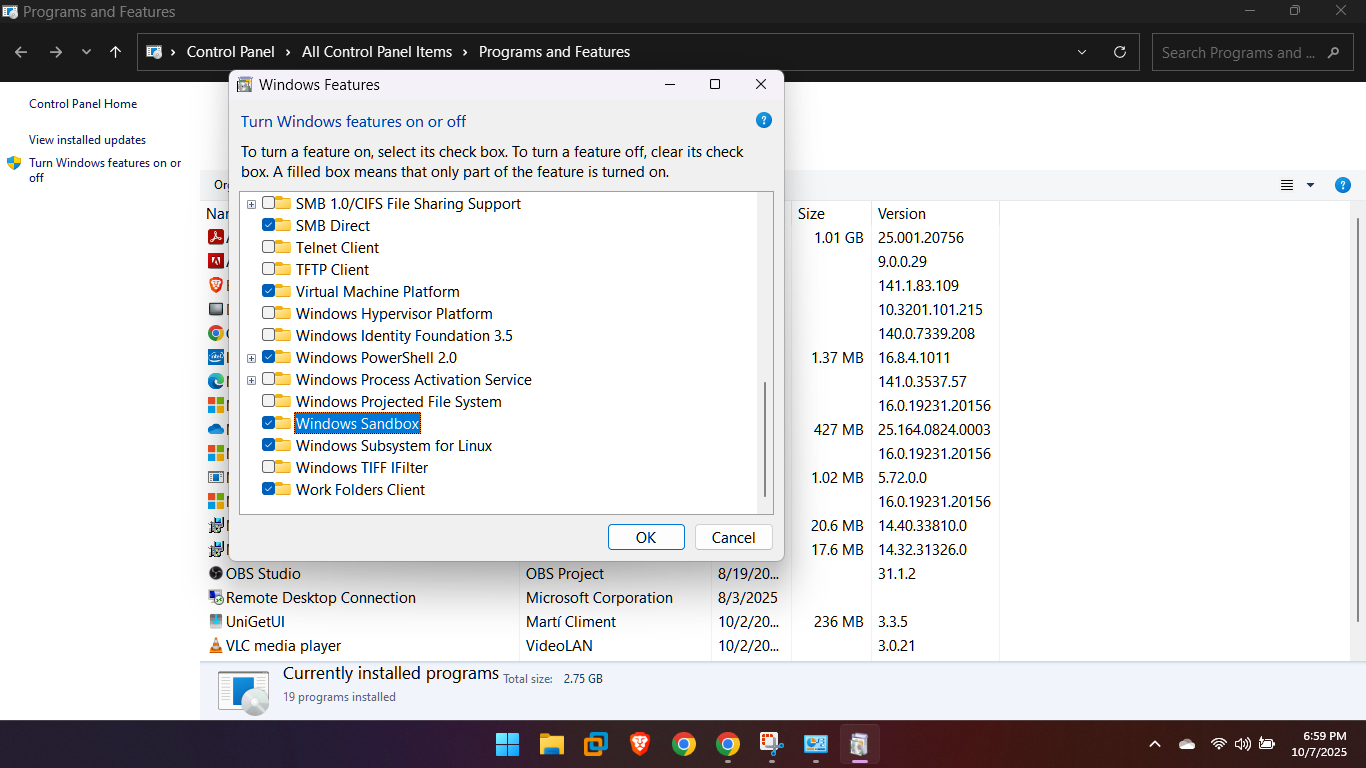
    1. Click OK.

    2. Windows will install the necessary components, and you will be prompted to restart your computer.

    Step 3: Start Windows Sandbox

    After your computer restarts:

    Type “Windows Sandbox” in the Windows search bar.
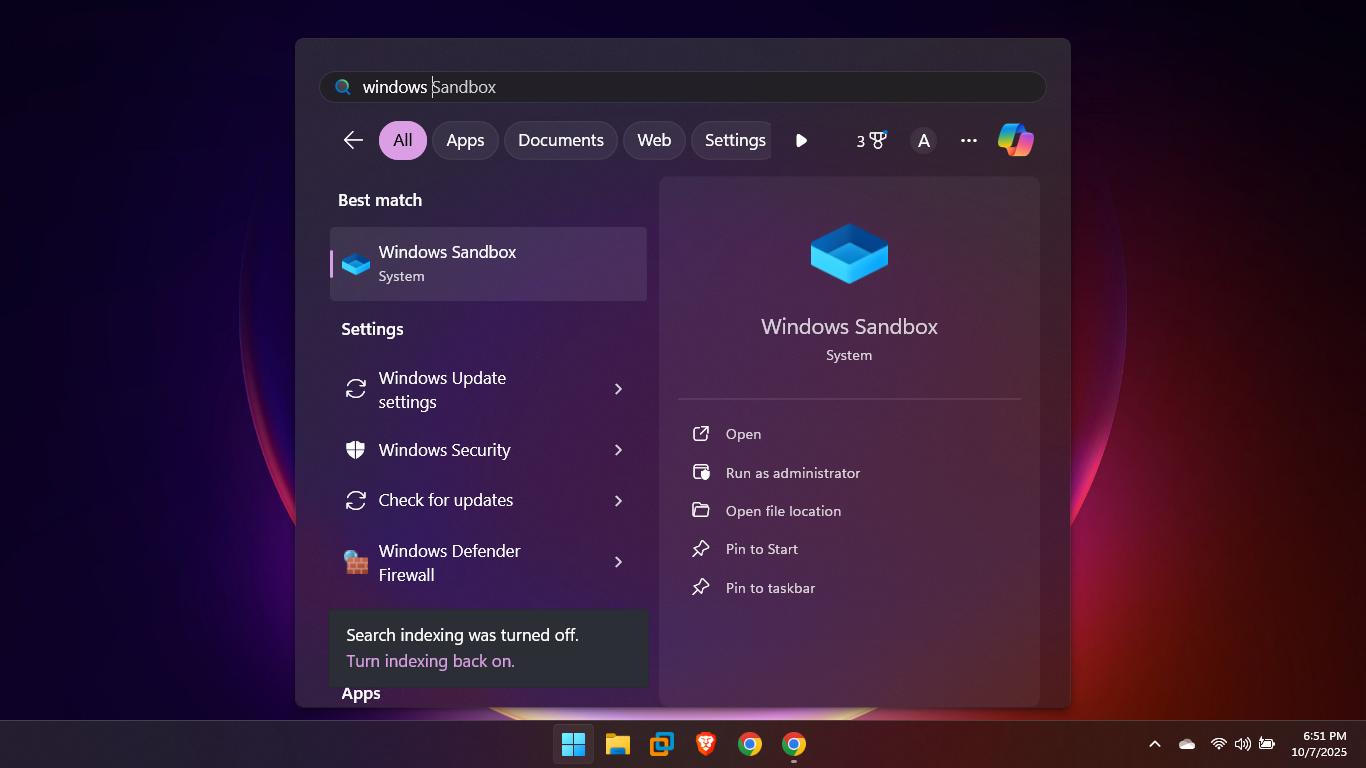
    Click the application to open it.
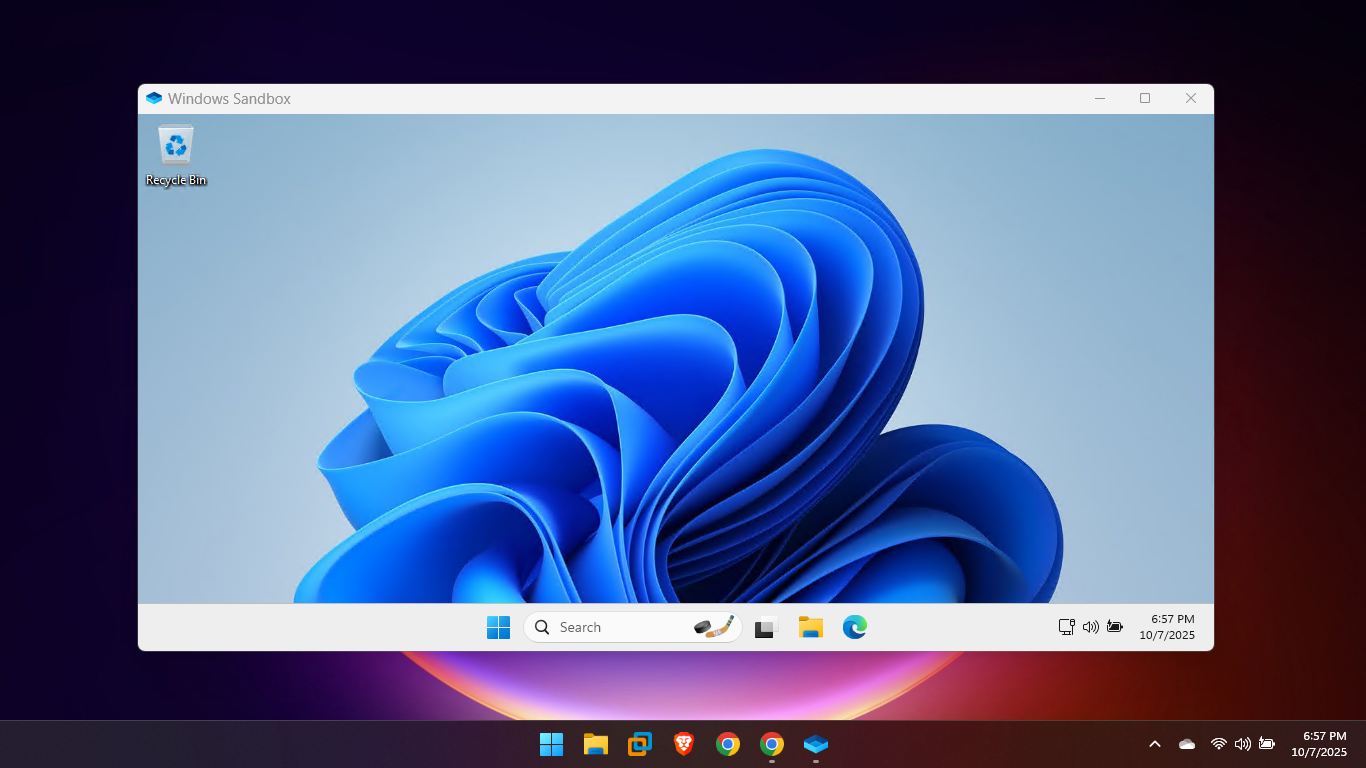
    A new, isolated desktop environment will open. Everything you do inside this window is separate from your main operating system and will be permanently deleted when you close the Sandbox.

    Share. WhatsApp Pinterest Twitter Facebook LinkedIn Tumblr Email
    Admin
    • Website

    Related Posts

    Disabling and Uninstalling Windows Updates

    October 15, 2025

    The Ultimate Guide to Installing Software with a WinGet GUI (UniGetUI)

    October 2, 2025

    How to download Windows 10 without Windows Media Creation Tool

    September 24, 2025
    Add A Comment
    Leave A Reply Cancel Reply

    Editors Picks
    Top Reviews
    Facebook X (Twitter) Instagram Pinterest YouTube
    • Home
    • Tech
    • Gadgets
    • Mobiles
    • Contact
    • Privacy Policy
    © 2026 MGCourses. Designed by MGCourses.

    Type above and press Enter to search. Press Esc to cancel.