

Anti-DDoS Guardian: What It Is and Why Your Windows Server Needs This Essential DDoS Defense Software
In short, Anti-DDoS Guardian is a dedicated, high-performance security software for Windows Internet servers (like web, mail, FTP, or game servers) that provides a firewall-like defense specifically against Distributed Denial of Service (DDoS) and Denial of Service (DoS) attacks.
Note:- The main use is to ensure your critical services stay online, available, and responsive, even when under direct cyberattack.
Quick Guide: How to Install Anti-DDoS Guardian
1. Download the Software
- Go to the official Anti-DDoS Guardian website and download the installer file.

Follow the on-screen prompts. The default settings are usually sufficient for a standard installation
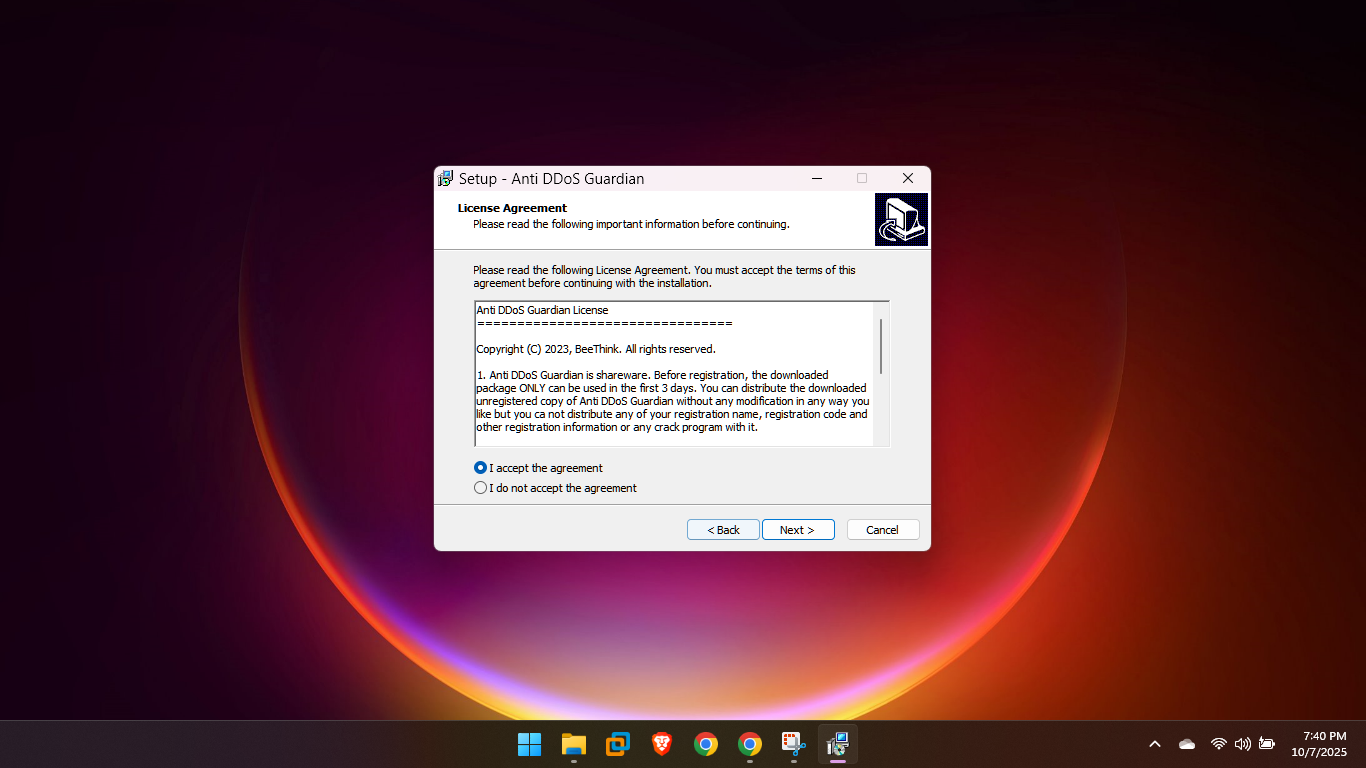
Once installed, you don’t need to be a security expert to start using the software. It begins defending your server immediately.
Proactive Traffic Monitoring and Real-Time IP Blocking
The power of this Windows DDoS defense software lies in its monitoring and immediate response capabilities.
Monitor Your Traffic (Dashboard)
-
View Network Activity: The power of this Windows DDoS defense software lies in its monitoring… with graphs and lists showing active connections, client bandwidth, and overall packet rates.

You can block an IP address with high packet activity in Anti-DDoS Guardian using two primary methods: Manual Real-time Blocking and Automated Rate-Based Limiting/Blocking.
Manual Real-time Blocking
This method is useful for immediate action when you notice an attack in progress and can identify the malicious IP address.
-
Monitor Traffic: Open the Anti-DDoS Guardian main window and observe the real-time network traffic. Look for sessions showing an unusually high volume of packets or network traffic from a specific source IP address.
-
View Session Details: Double-click the suspicious session or connection from the attacking IP address to open the Traffic Detail Viewer. This will show raw data, including the high volume of incoming packets/bytes.
-
Block the IP: In the Traffic Detail Viewer window, locate and select the option to Block IP (often found in a left-hand pane or action menu).
-
Confirmation: The blocked session should turn a distinctive color (e.g., red) in the main window’s “Action Taken” column, …confirming the IP is now blocked by your Anti-DDoS Guardian.
