

You can create an FTP server in Windows 11 using the built-in Internet Information Services (IIS) feature.
To create an FTP Server on Windows 11 ,Open the Control Panel. Make sure View by is set to Large icons or Small icons. – Click Programs and Features.
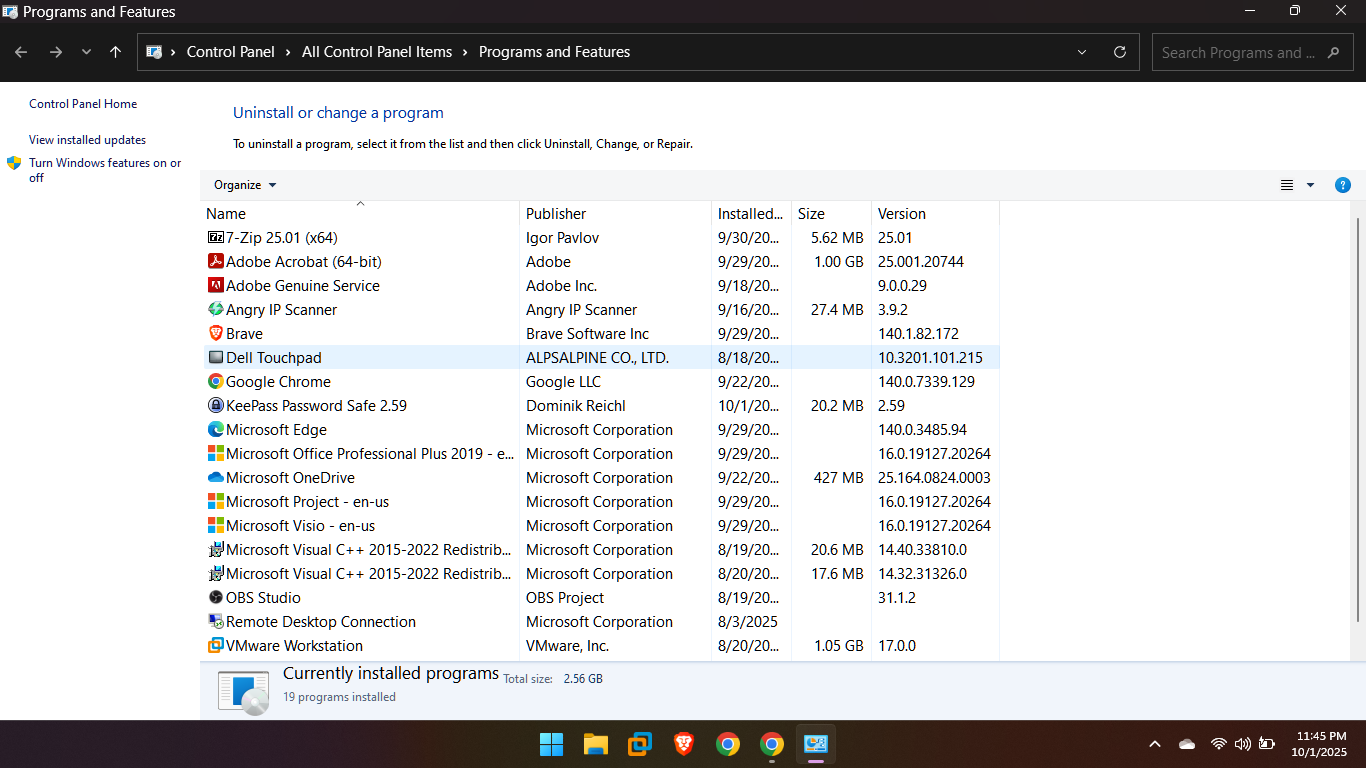
On the left, click Turn Windows features on or off. – n the Windows Features dialog box, expand Internet Information Services. – Expand the FTP Server node and check the box next to FTP Service – Expand the Web Management Tools node and ensure IIS Management Console is checked.
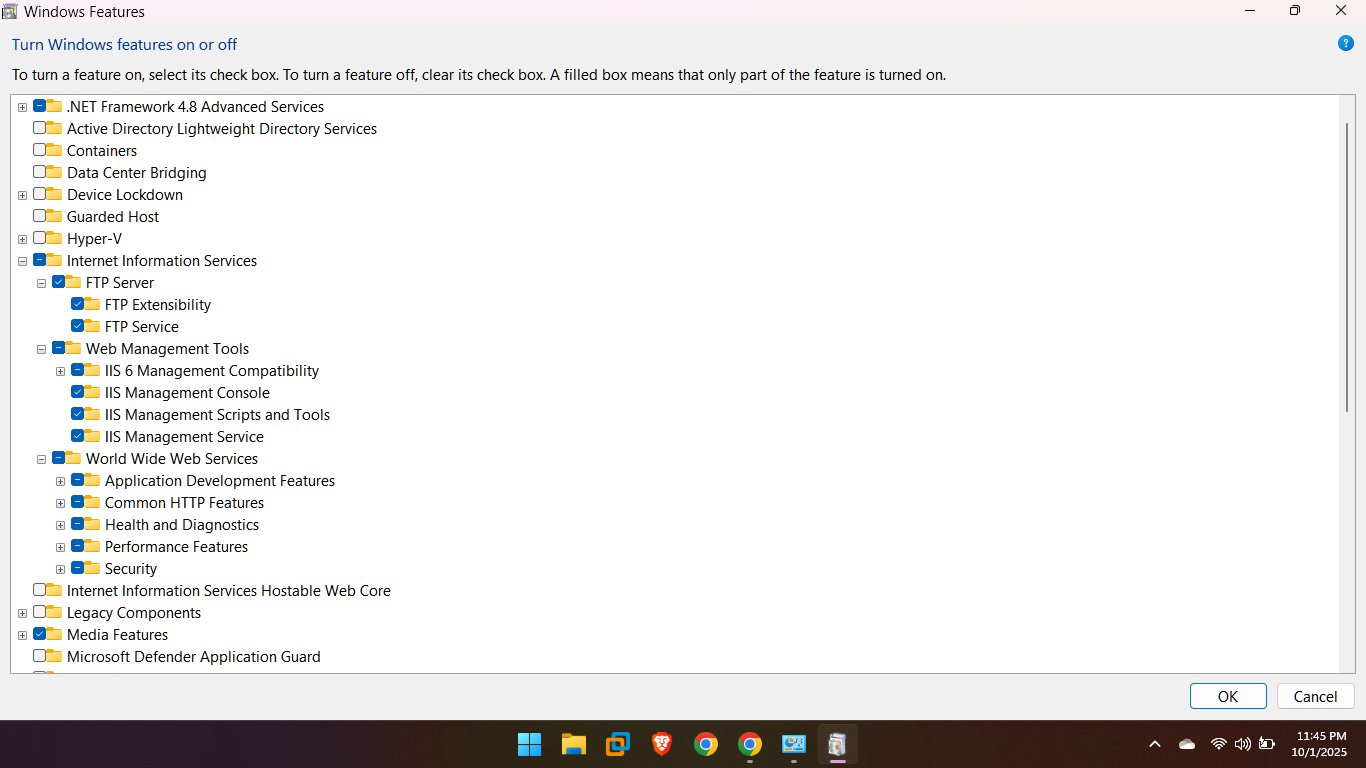
Click OK and wait for the installation to complete. You may need to restart your computer.
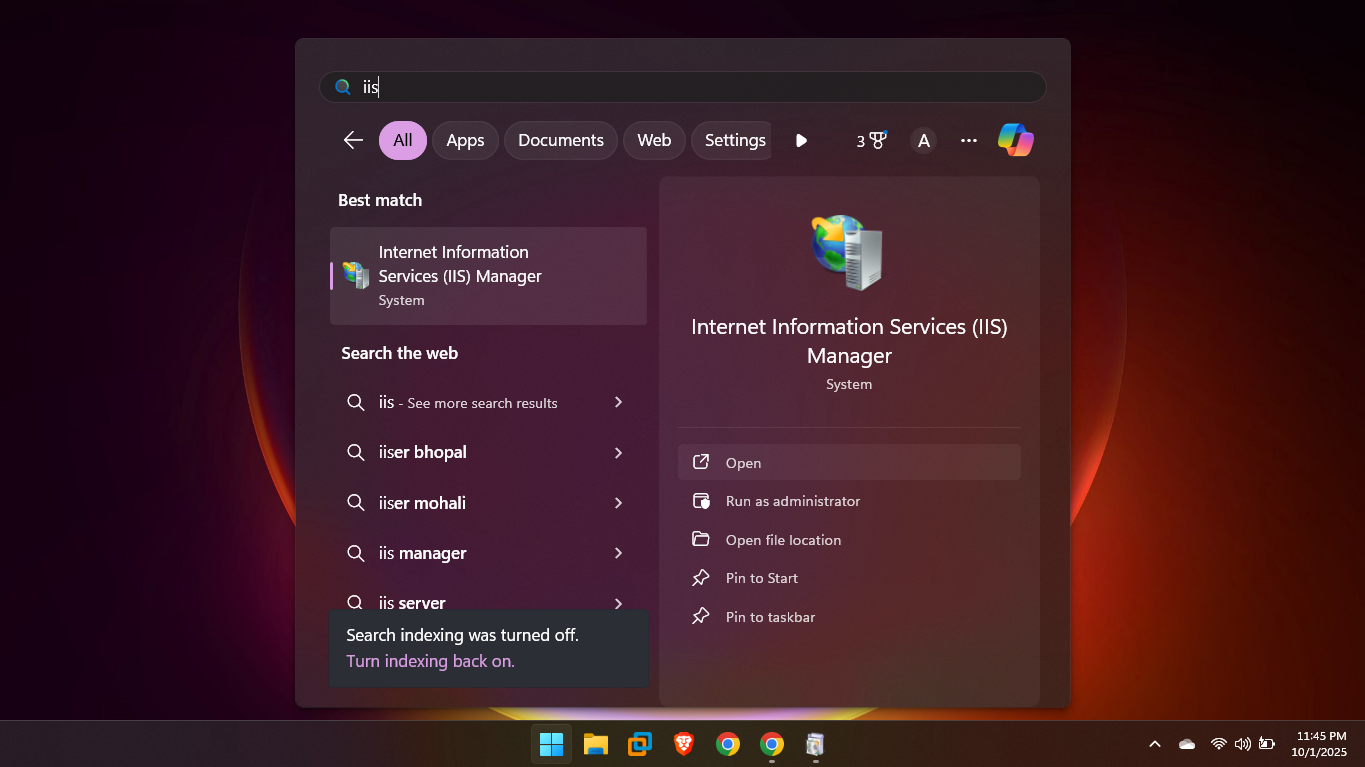
Open Internet Information Services (IIS) Manager. You can find it by searching for it in the Start menu or by going to Control Panel > Windows Tools (or Administrative Tools) > Internet Information Services (IIS) Manager.
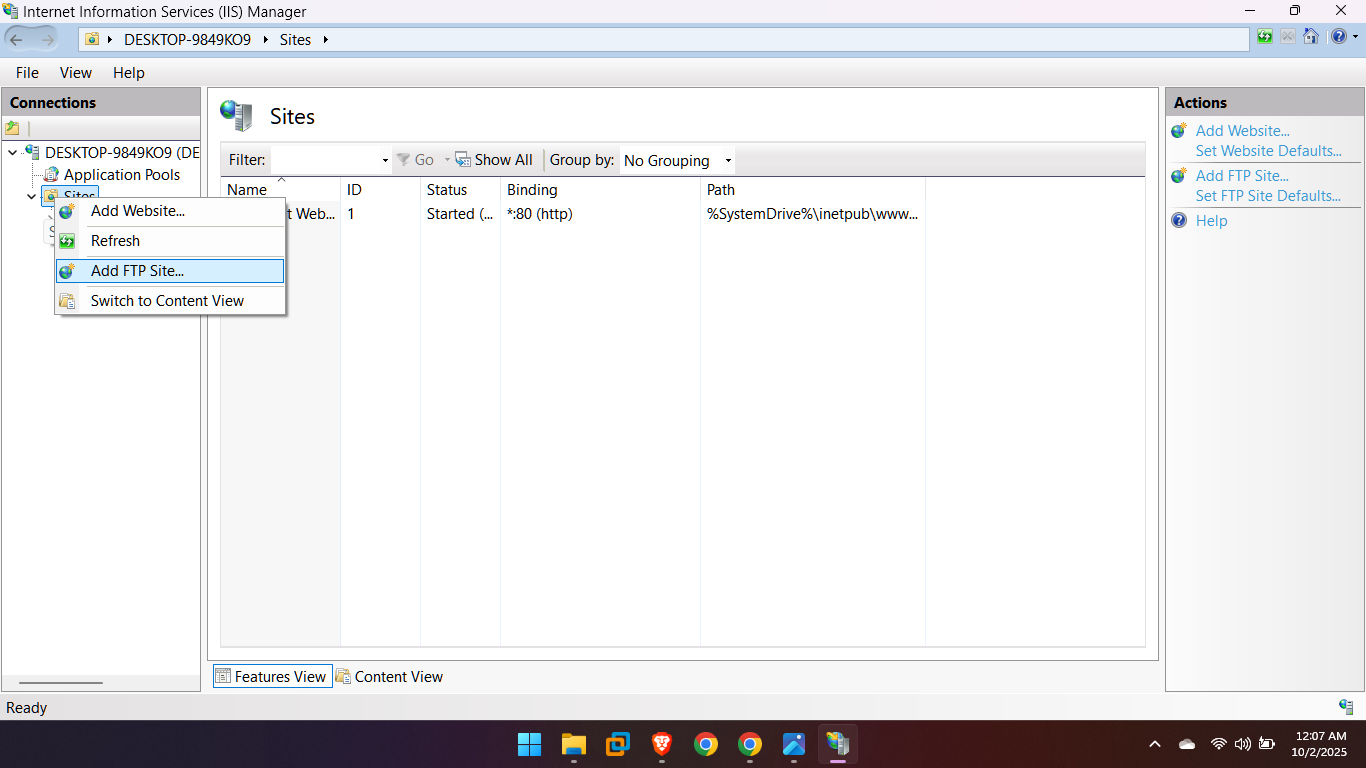
In the Connections pane on the left, expand your computer name and then right-click Sites. – Select Add FTP Site… –
FTP site name: Enter a name for your FTP site (e.g., “NewFTP”) – Physical path: Browse to or enter the path of the folder you want to use for the FTP files (this is the folder people will access).
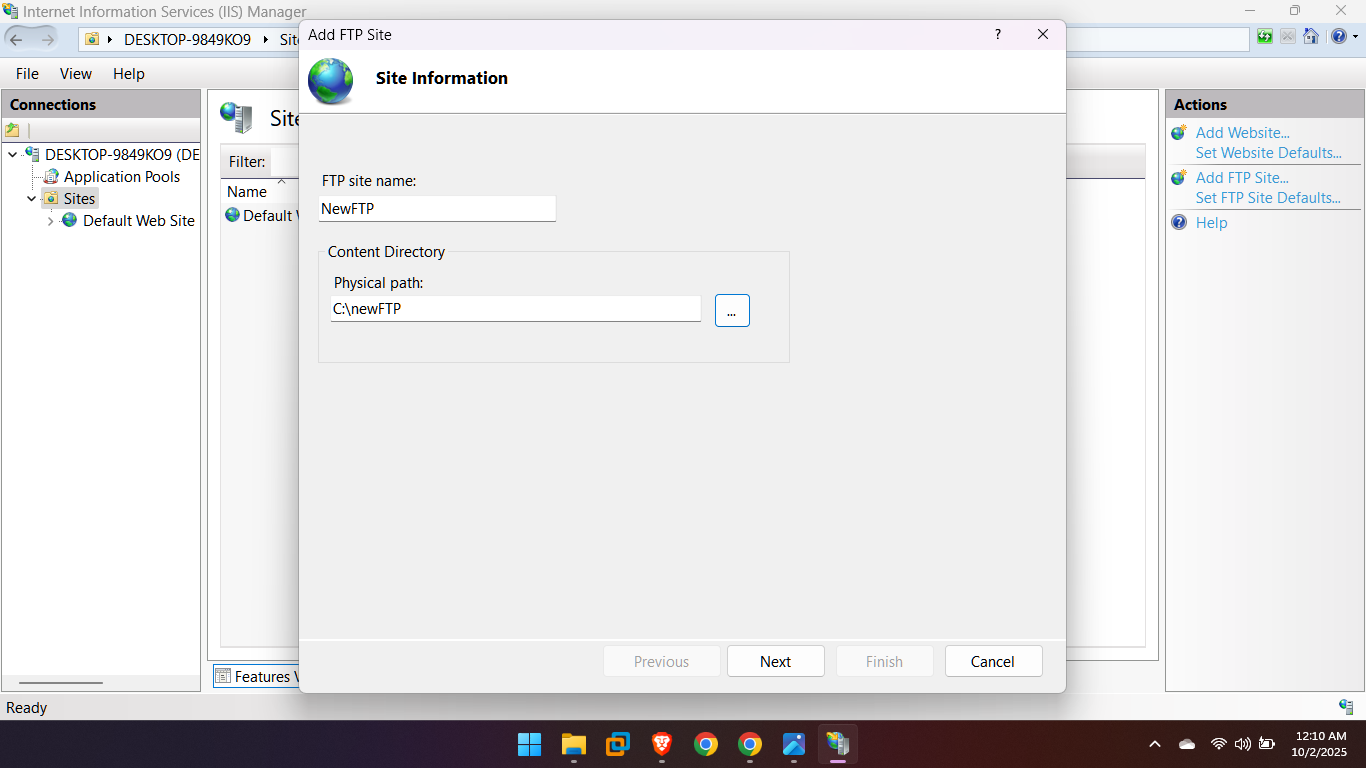
Click Next.
IP Address: Choose your computer’s IP address from the drop-down –
Port: Leave as the default 21 (the standard FTP port) unless you have a specific reason to change it.
SSL: Choose No SSL for a basic setup. For a secure connection (FTPS), you would need an SSL certificate.
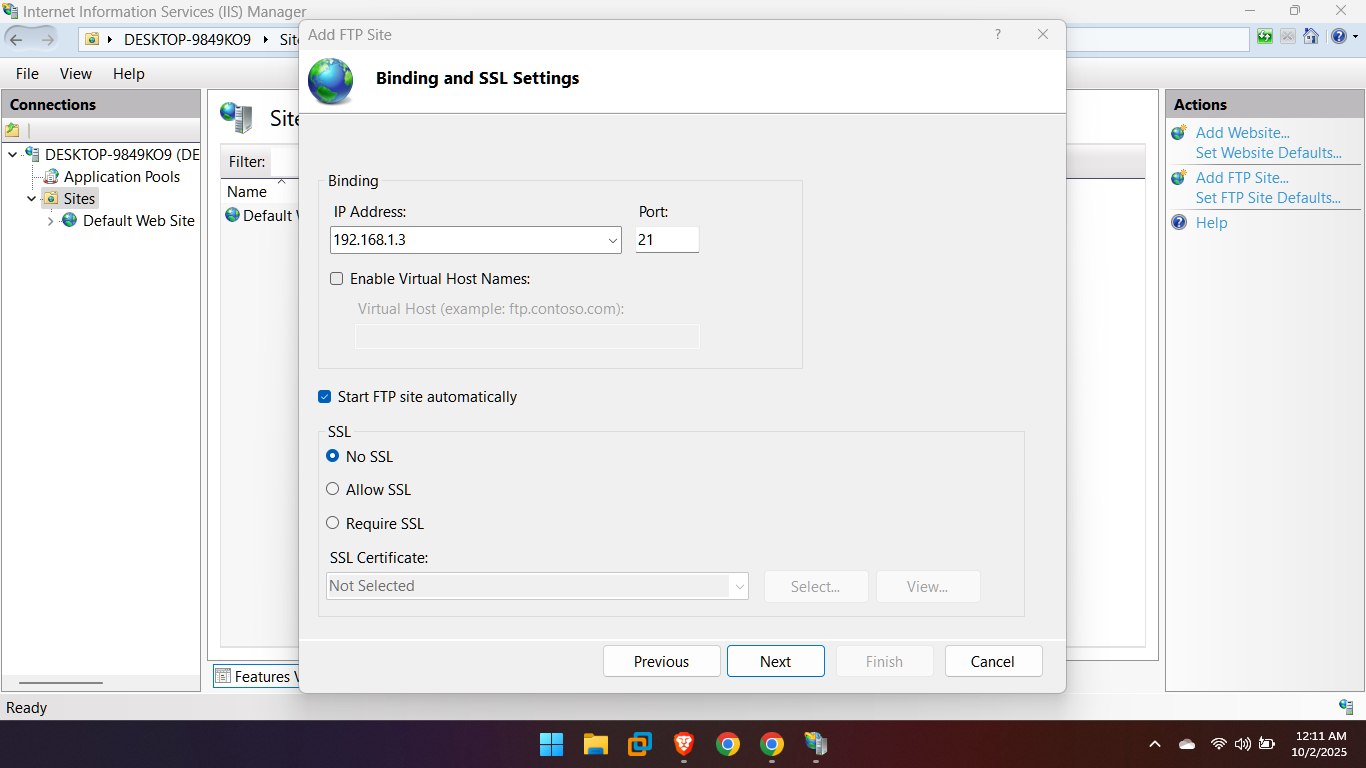
Click Next.
Authentication: Check Basic (required for user login) and optionally Anonymous if you want anyone to access it without a password.
Authorization: From the dropdown, choose how to grant access. For example, choose Specified users (I choose ALL Users) and enter the local Windows user account name(s) that should have access.
Permissions: Check Read and Write as needed.
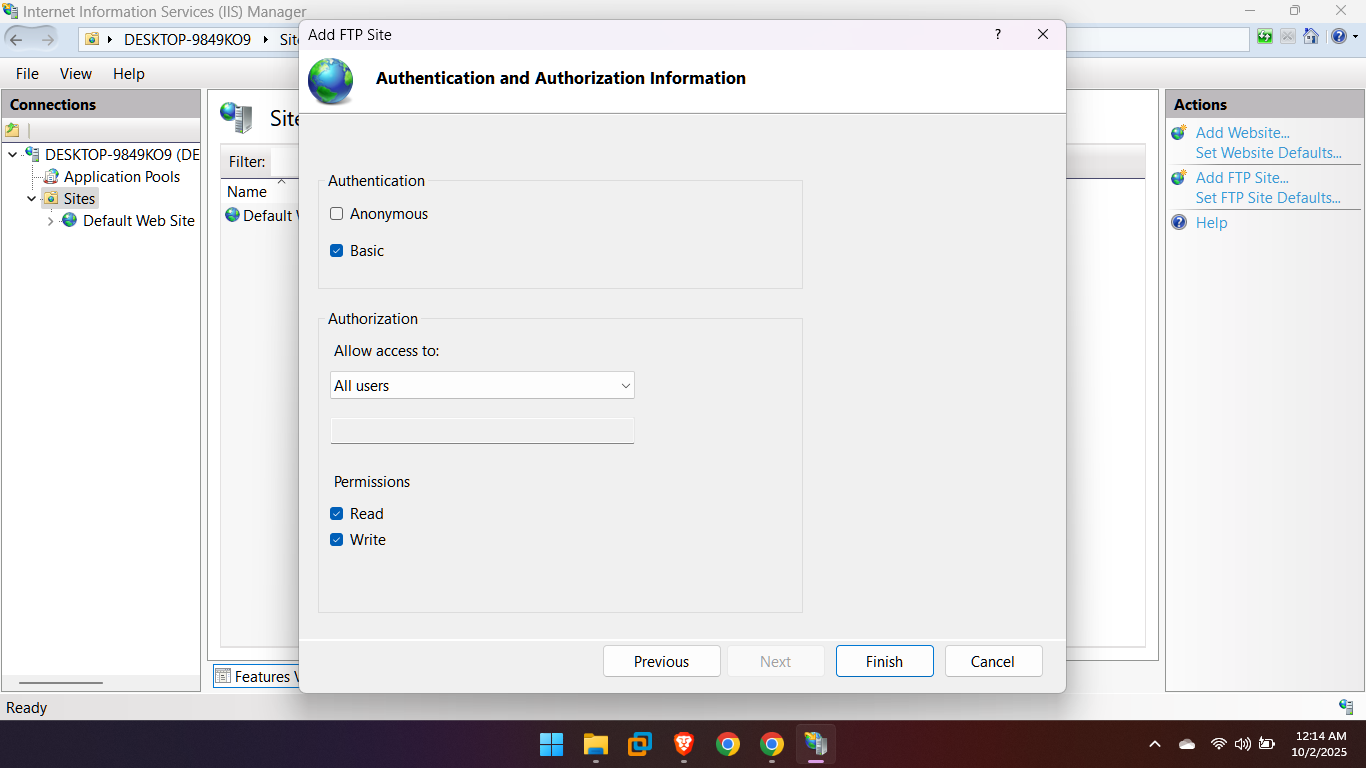
Click Finish.
Your FTP server is now set up and ready to be accessed by a client (like FileZilla) using your computer’s IP address (e.g., ftp://192.168.1.3) and the credentials of any user.
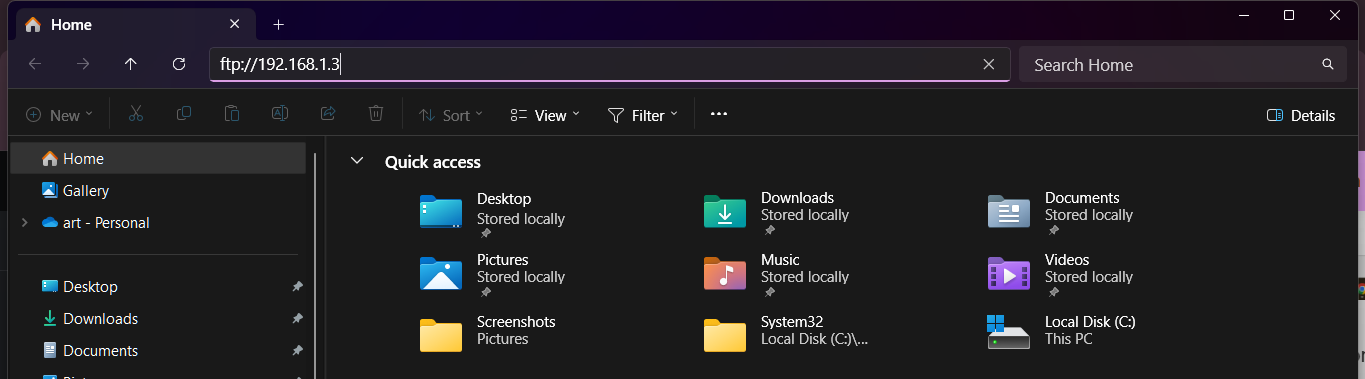
Just enter the username and password
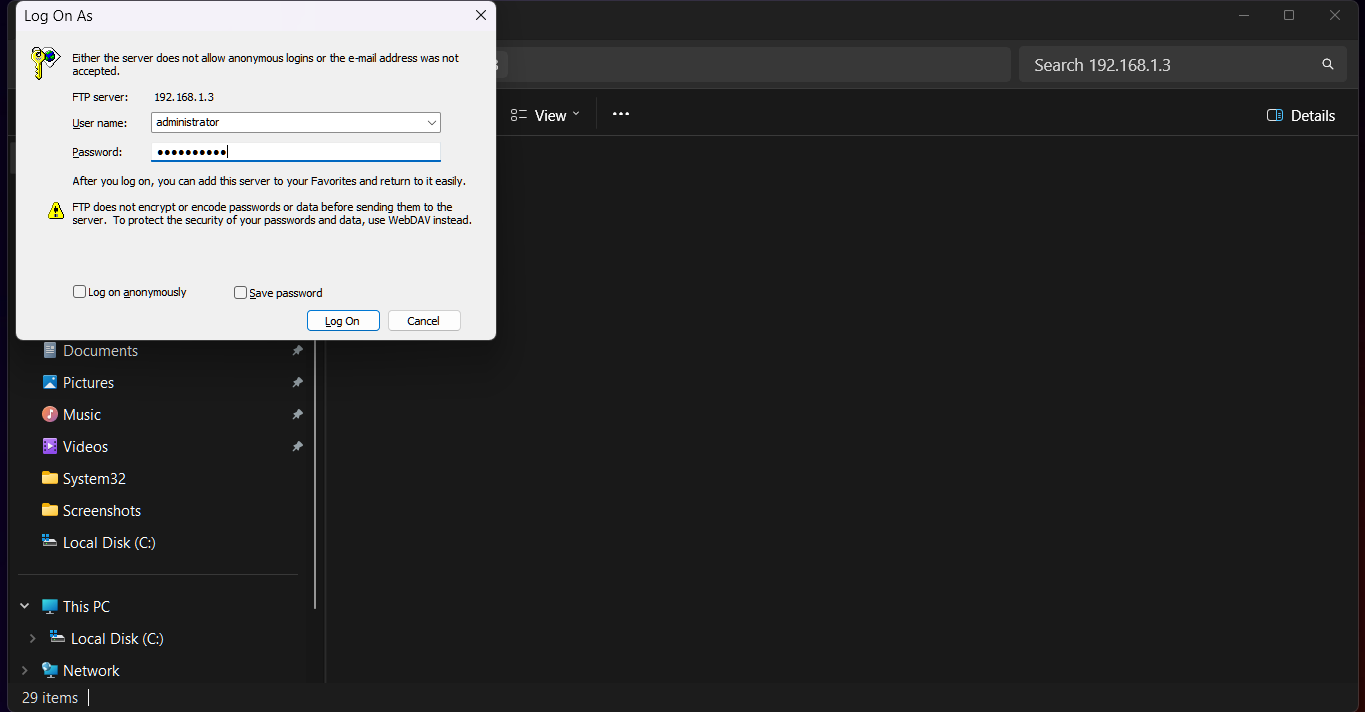
Click on LogOn
