
Close Menu

    Subscribe to Updates

    Get the latest creative news from FooBar about art, design and business.

    What's Hot

    Disabling and Uninstalling Windows Updates

    October 15, 2025

    DDoS Defense Software for Windows Servers

    October 7, 2025

    Sandbox Explained: Your Secure Digital Playground

    October 7, 2025
    Facebook X (Twitter) Instagram
    • Tech
    • Gadgets
    Facebook X (Twitter) Instagram
    mgcourses.shop
    Subscribe
    • Home
    • Categories
      • Windows
      • Server
      • PC Security
    • Blogs
      1. Tech
      2. Gadgets
      3. Insights
      4. View All

      Disabling and Uninstalling Windows Updates

      October 15, 2025

      DDoS Defense Software for Windows Servers

      October 7, 2025

      Sandbox Explained: Your Secure Digital Playground

      October 7, 2025

      The Ultimate Guide to Installing Software with a WinGet GUI (UniGetUI)

      October 2, 2025
    • Contact
    • Our Authors
    • Privacy Policy
    mgcourses.shop
    Home»Tech»Windows»How to download Windows 10 without Windows Media Creation Tool
    Windows

    How to download Windows 10 without Windows Media Creation Tool

    AdminBy AdminSeptember 24, 2025Updated:October 12, 2025No Comments1 Min Read
    WhatsApp Pinterest Twitter Facebook LinkedIn Tumblr Email
    Share
    WhatsApp Twitter Facebook Pinterest LinkedIn Email

    I usually use Windows Media Creation Tool to download Windows 10 ISO. Recently, I wanted to create Windows 10 To GO USB, and it wouldn’t work with ISO created with Windows Media Creation Tool. So, to download direct Windows 10 ISO image from Microsoft – we need to do a simple trick –

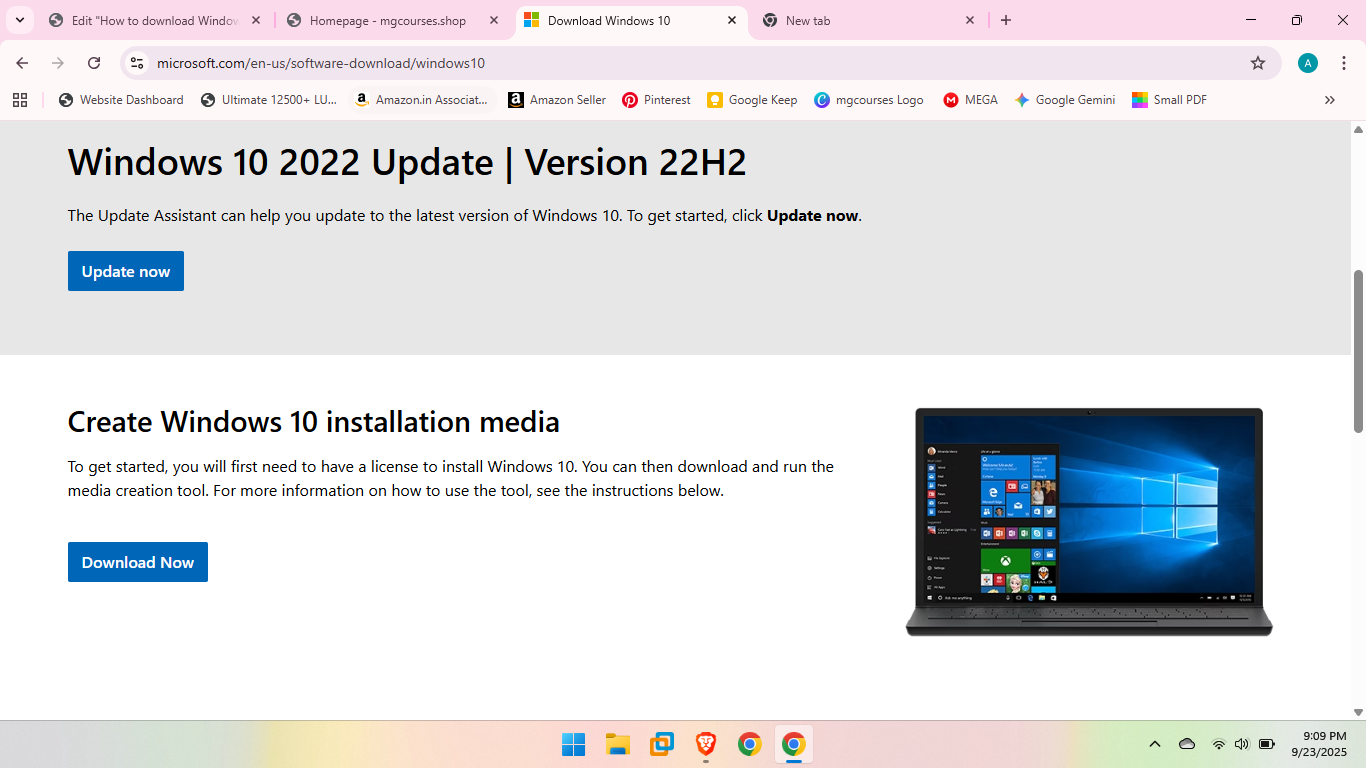
    Let’s do this quickly – this is the link on which you will get your Windows 10 download usually, we will use it now also – https://www.microsoft.com/en-us/software-download/windows10

    This is displayed page – ok, now open Microsoft Edge – you heard well – open Microsoft Edge, and paste the link into it.
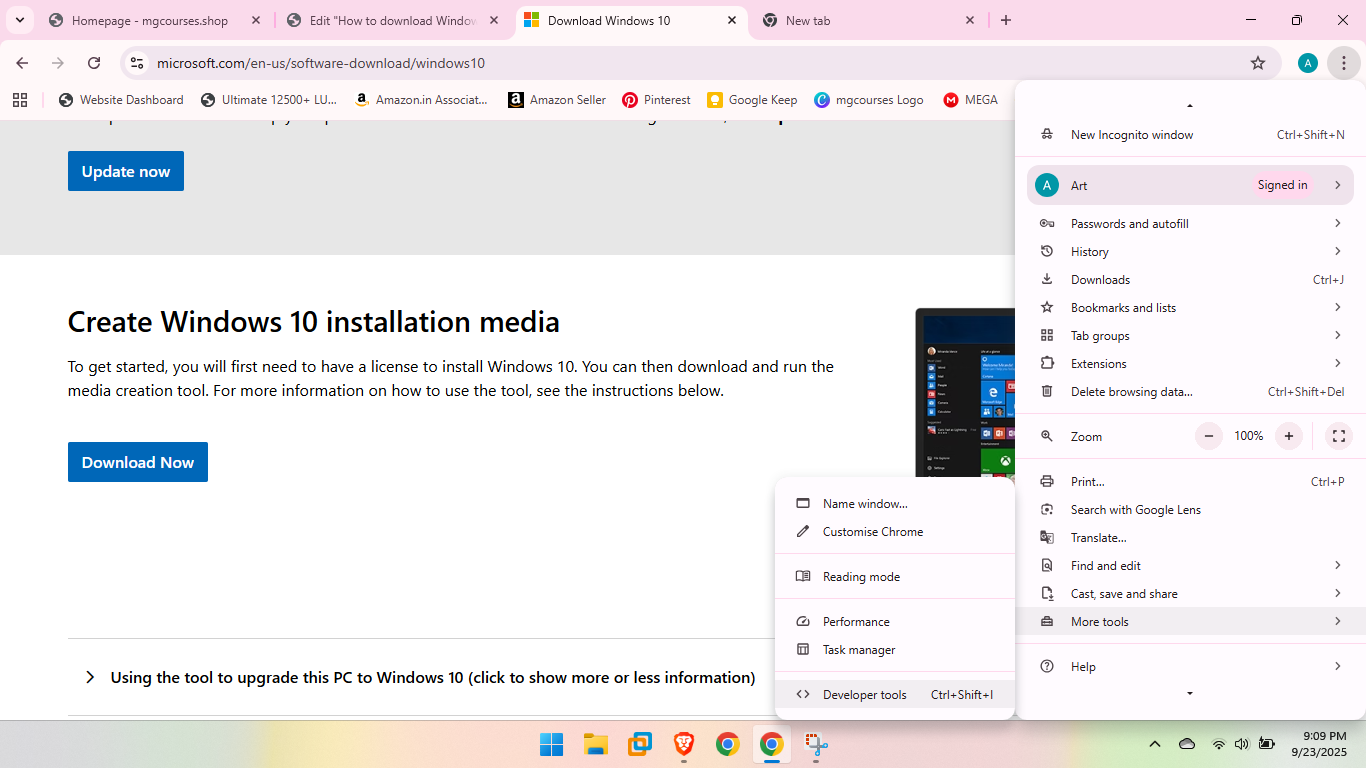
    After link is opened in Microsoft Edge– click on a three dot – more tools – developer tools or Press CTRL+SHIFT+I to open F12 Developer Tools
    Press CTRL+SHIFT+M
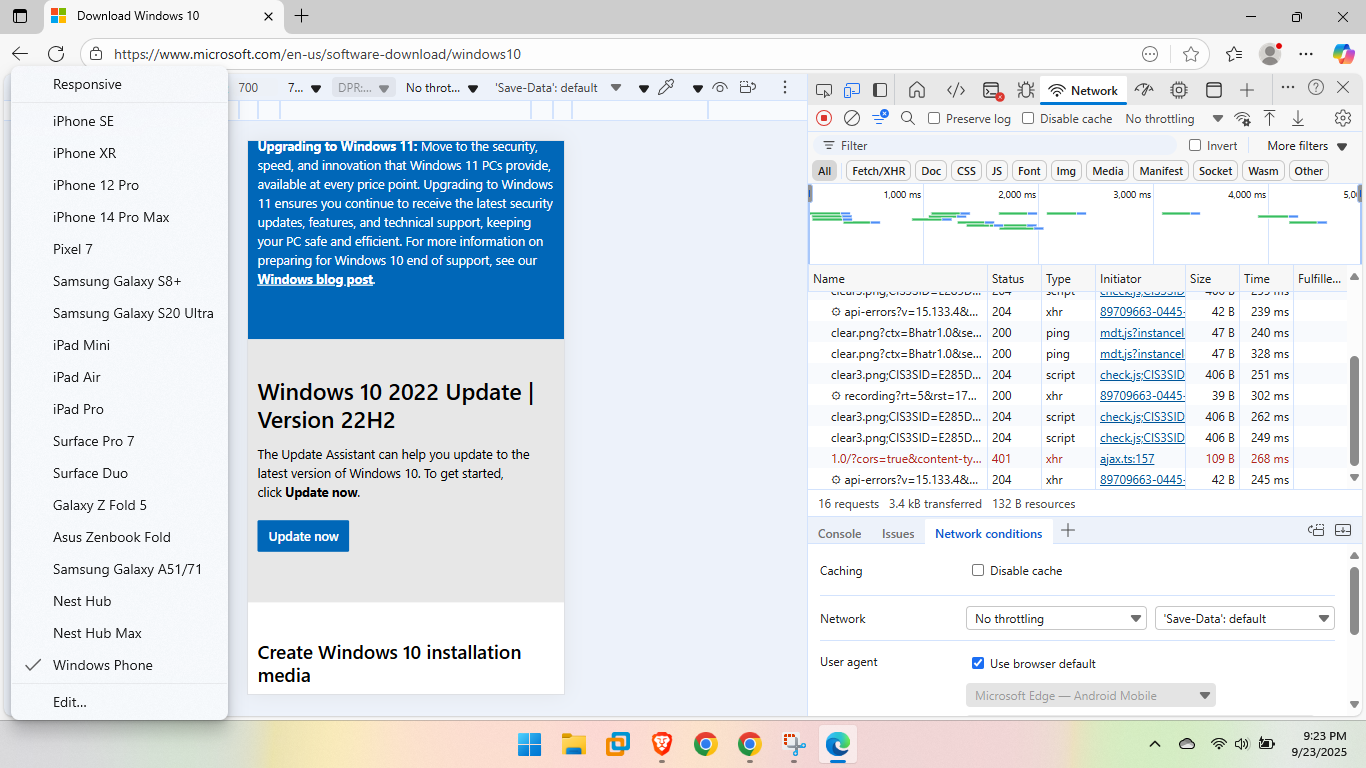
    Go to Network and then Network Conditions
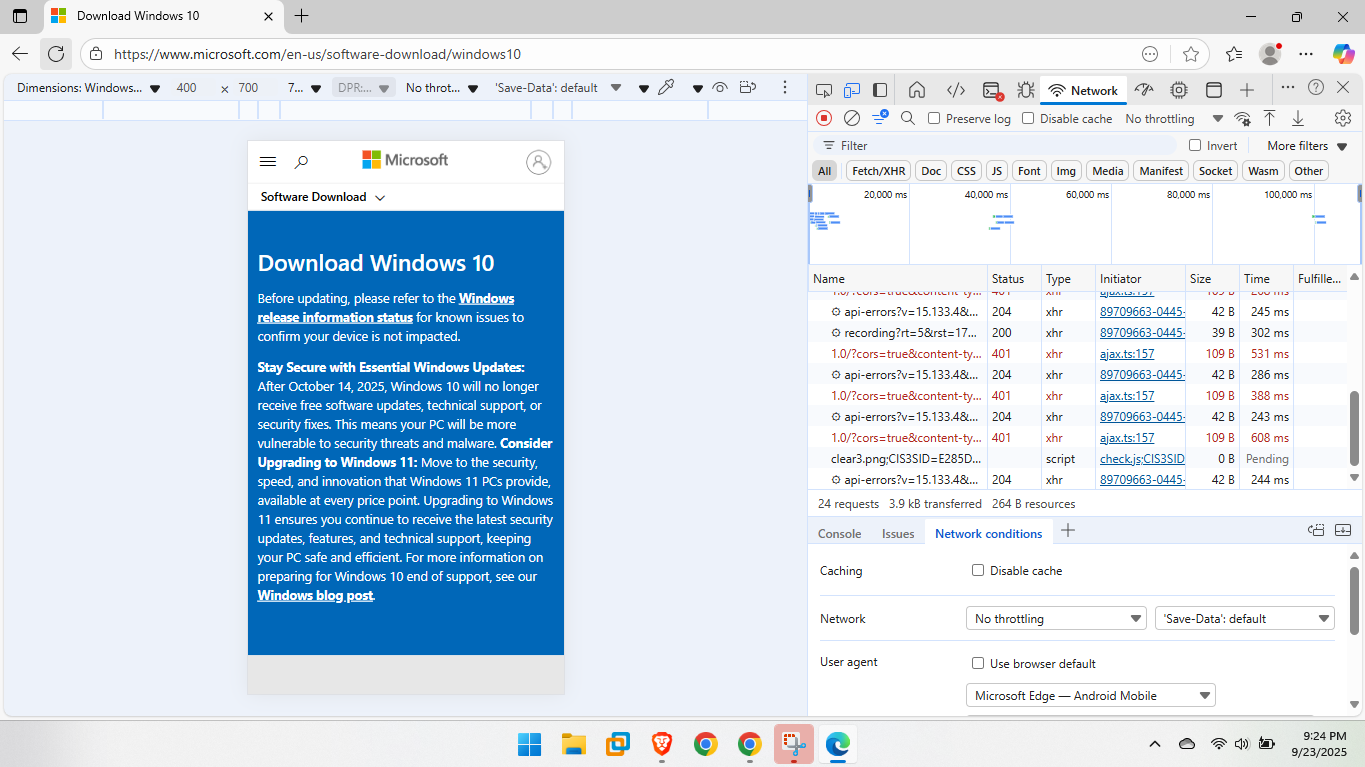
    under Untick the “use browser default” button

    and select Microsoft Edge  – Android Mobile

    And now just refresh the page and you will see “Select edition”
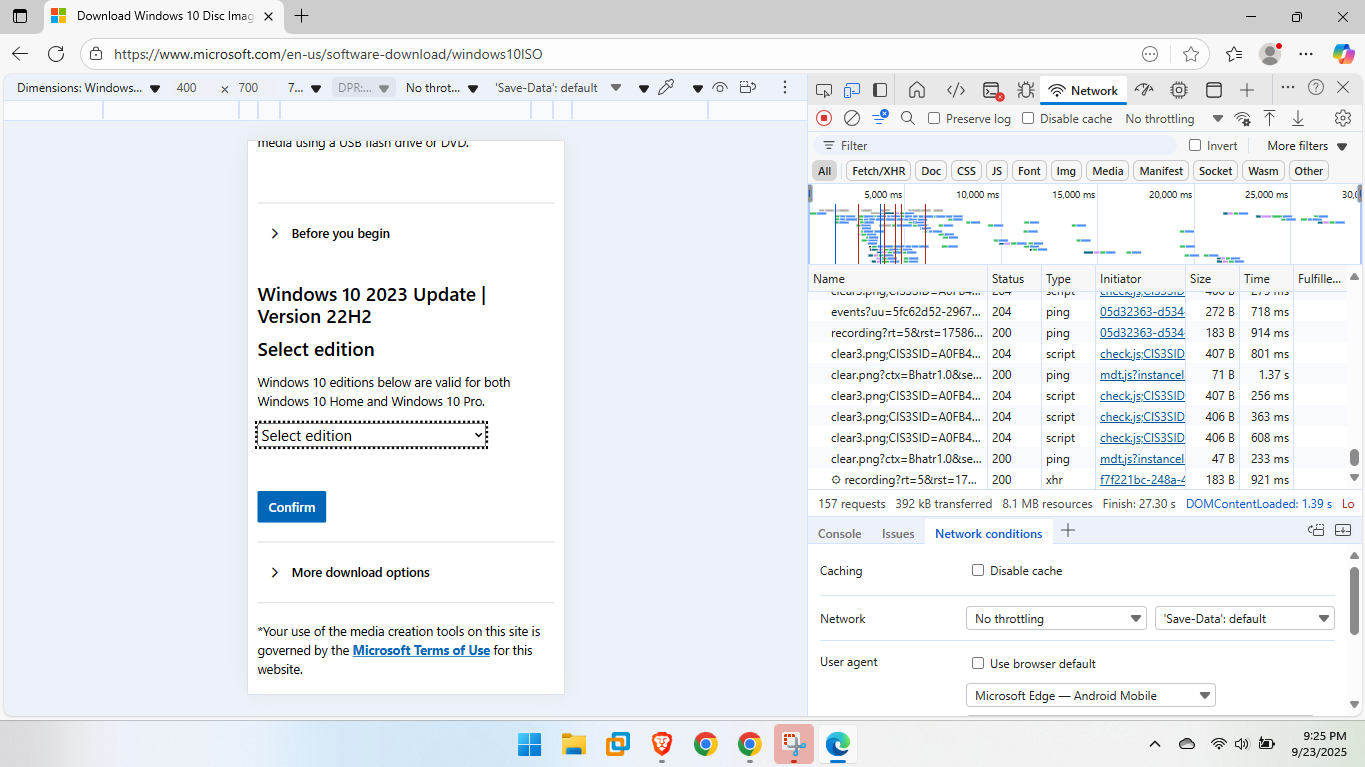
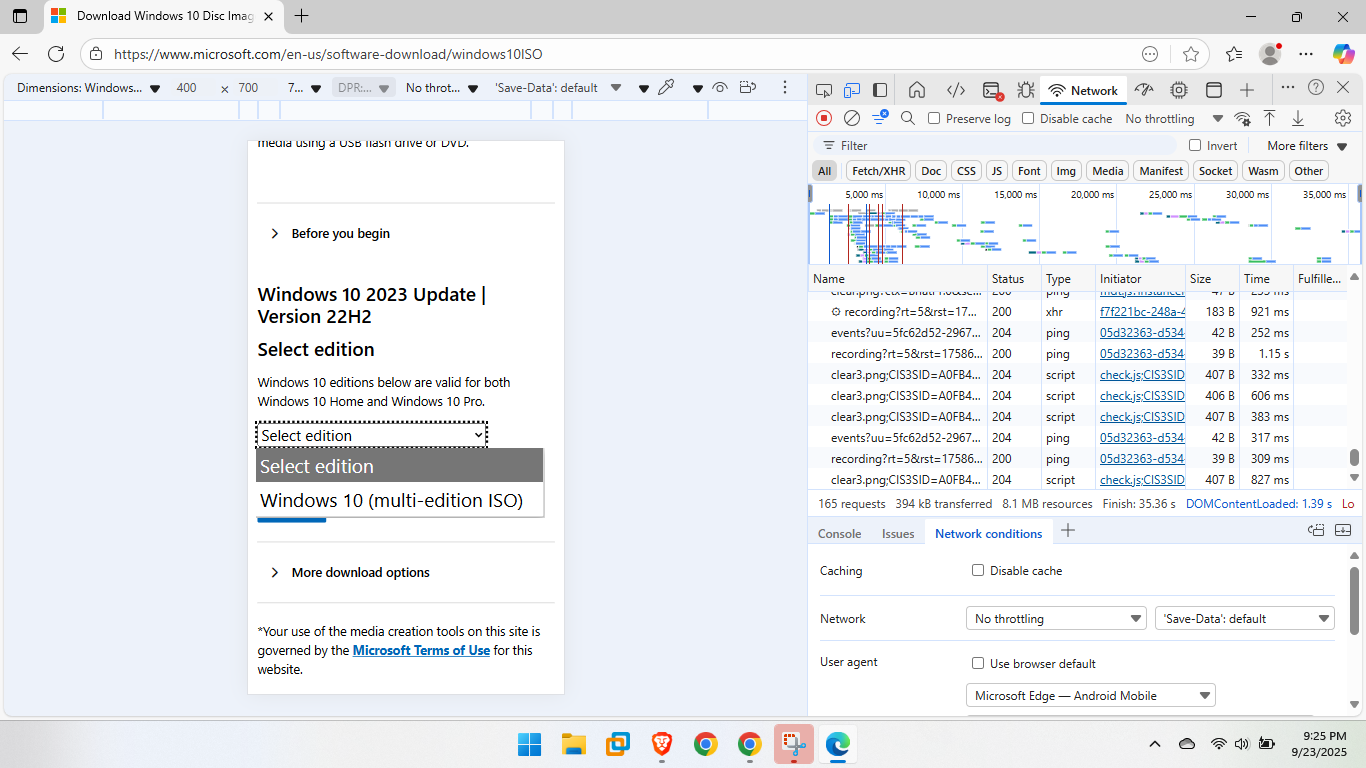
    We will select Windows 10 (multi-edition ISO) and select confirm
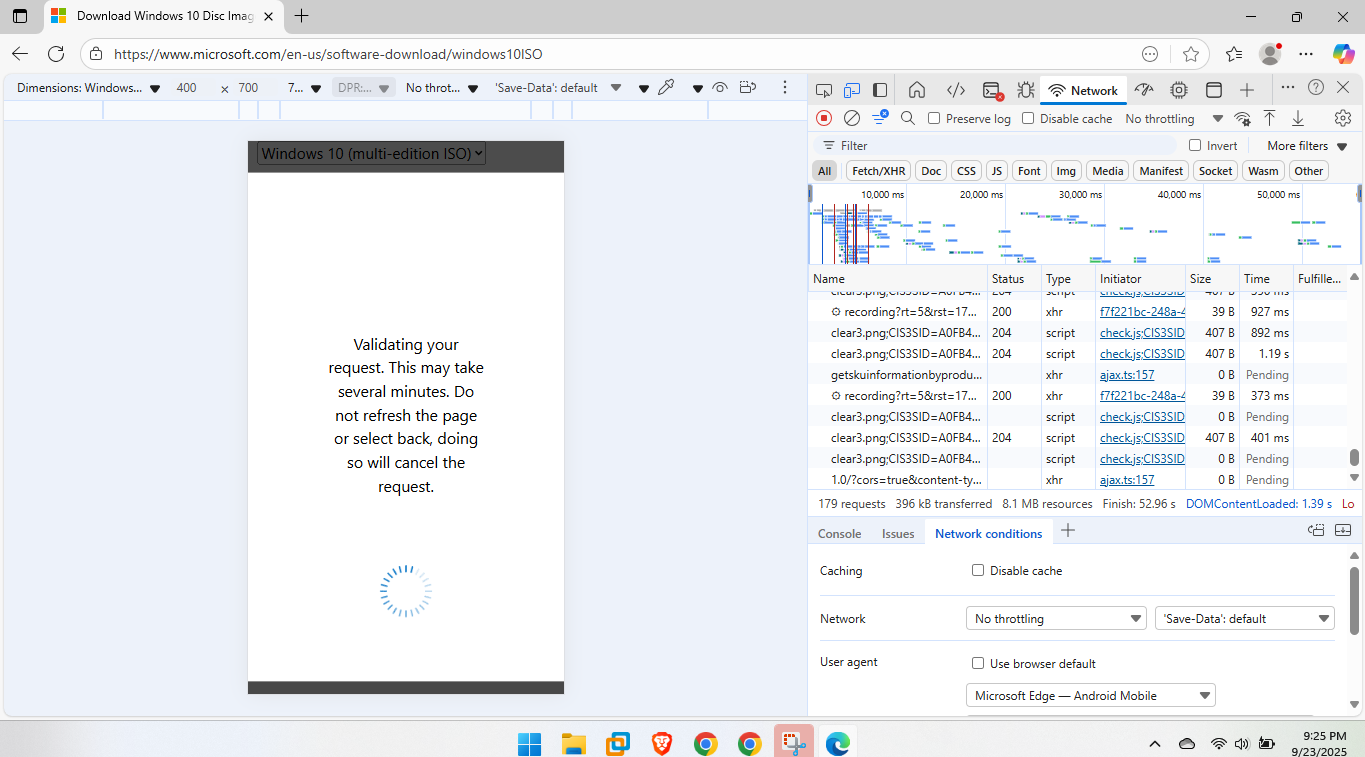
    A validating page may be come 
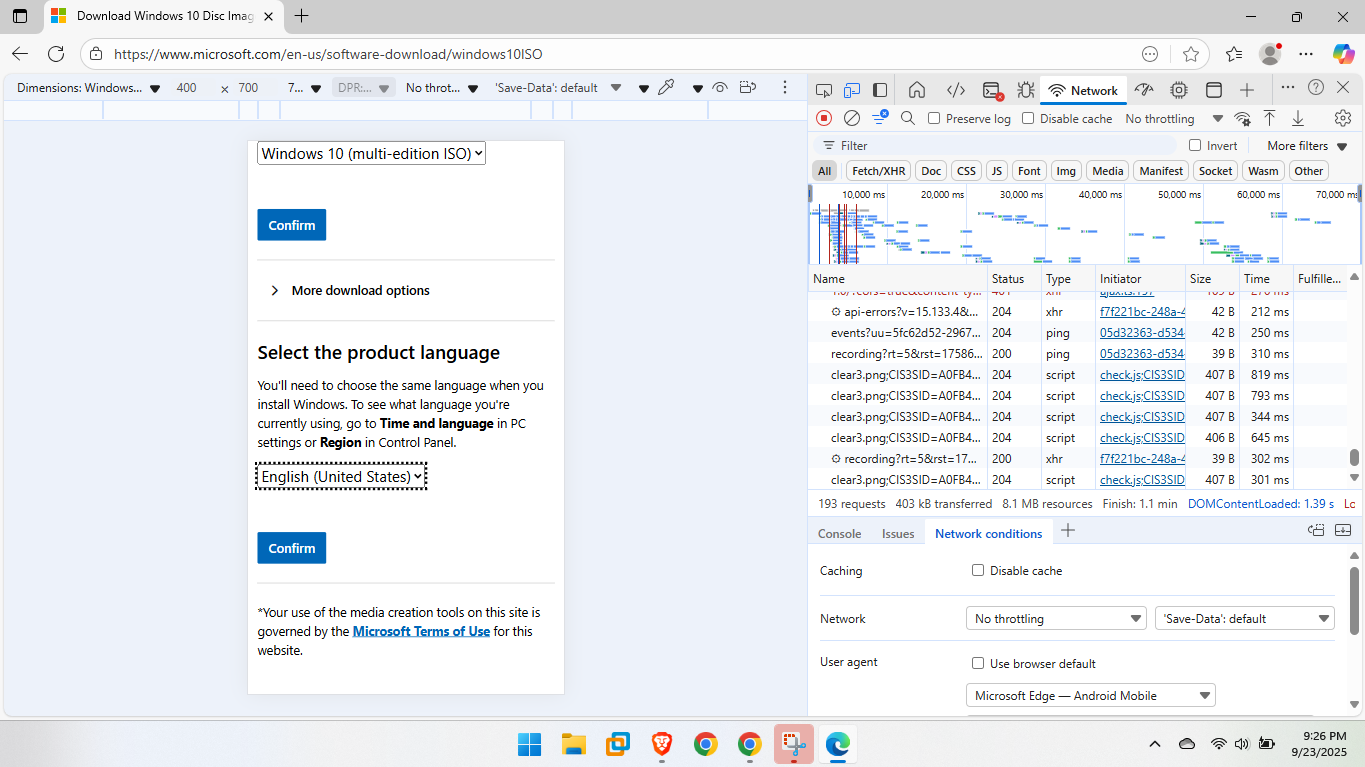
    For a language I selected English – Confirm
     

    Choose version you would like to download – 64 or 32bit version (I first download 64bit)

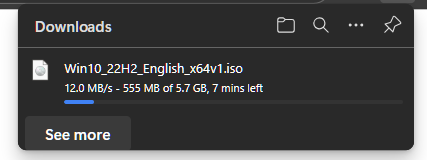
    and you will see ,it is being download.
    Share. WhatsApp Pinterest Twitter Facebook LinkedIn Tumblr Email
    Admin
    • Website

    Related Posts

    Disabling and Uninstalling Windows Updates

    October 15, 2025

    Sandbox Explained: Your Secure Digital Playground

    October 7, 2025

    The Ultimate Guide to Installing Software with a WinGet GUI (UniGetUI)

    October 2, 2025
    Add A Comment
    Leave A Reply Cancel Reply

    Editors Picks
    Top Reviews
    Facebook X (Twitter) Instagram Pinterest YouTube
    • Home
    • Tech
    • Gadgets
    • Mobiles
    • Contact
    • Privacy Policy
    © 2026 MGCourses. Designed by MGCourses.

    Type above and press Enter to search. Press Esc to cancel.