
Close Menu

    Subscribe to Updates

    Get the latest creative news from FooBar about art, design and business.

    What's Hot

    Disabling and Uninstalling Windows Updates

    October 15, 2025

    DDoS Defense Software for Windows Servers

    October 7, 2025

    Sandbox Explained: Your Secure Digital Playground

    October 7, 2025
    Facebook X (Twitter) Instagram
    • Tech
    • Gadgets
    Facebook X (Twitter) Instagram
    mgcourses.shop
    Subscribe
    • Home
    • Categories
      • Windows
      • Server
      • PC Security
    • Blogs
      1. Tech
      2. Gadgets
      3. Insights
      4. View All

      Disabling and Uninstalling Windows Updates

      October 15, 2025

      DDoS Defense Software for Windows Servers

      October 7, 2025

      Sandbox Explained: Your Secure Digital Playground

      October 7, 2025

      The Ultimate Guide to Installing Software with a WinGet GUI (UniGetUI)

      October 2, 2025
    • Contact
    • Our Authors
    • Privacy Policy
    mgcourses.shop
    Home»Tech»Windows»The Ultimate Guide to Installing Software with a WinGet GUI (UniGetUI)
    Windows

    The Ultimate Guide to Installing Software with a WinGet GUI (UniGetUI)

    AdminBy AdminOctober 2, 2025Updated:October 3, 2025No Comments1 Min Read
    WhatsApp Pinterest Twitter Facebook LinkedIn Tumblr Email
    Share
    WhatsApp Twitter Facebook Pinterest LinkedIn Email

    Step 1: Installation of the WinGet GUI (UniGetUI)

    The Easiest Way (Microsoft Store)

    1. Open the Microsoft Store on your Windows 10 or Windows 11 PC.

    2. Search for “UniGetUI” (or sometimes “WingetUI”).
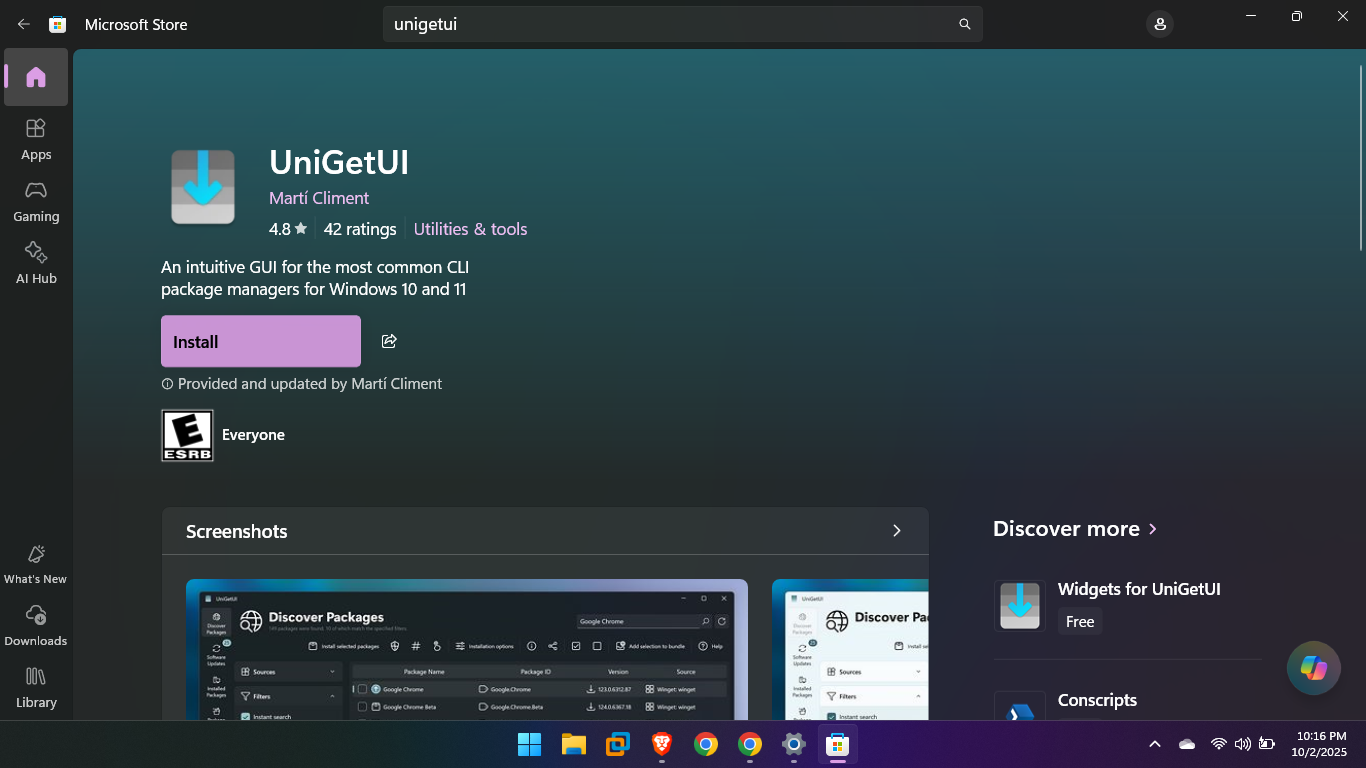
    Click the “Get” or “Install” button. The Microsoft Store handles the download and setup automatically.
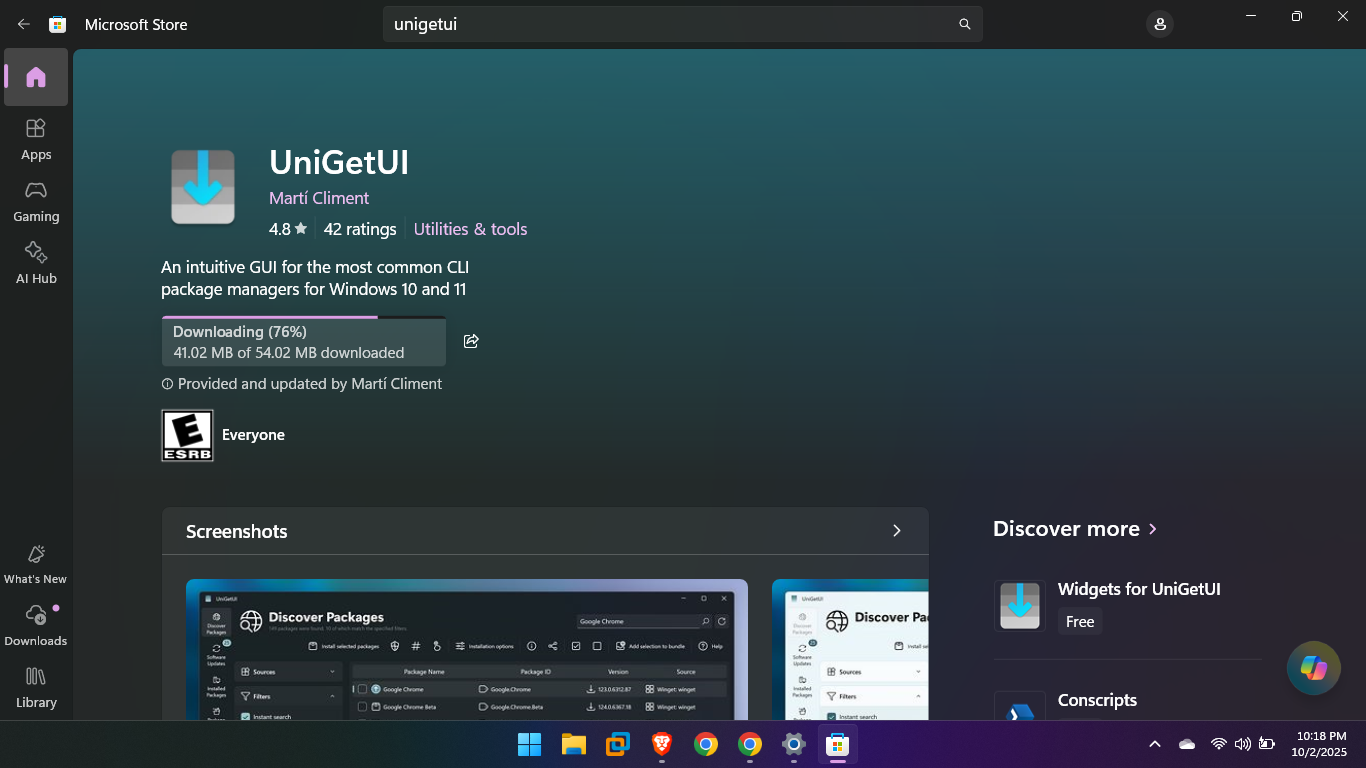
    A Pop-up may be come to click Yes or No – Click on Yes

    When It has been installed, click to Open
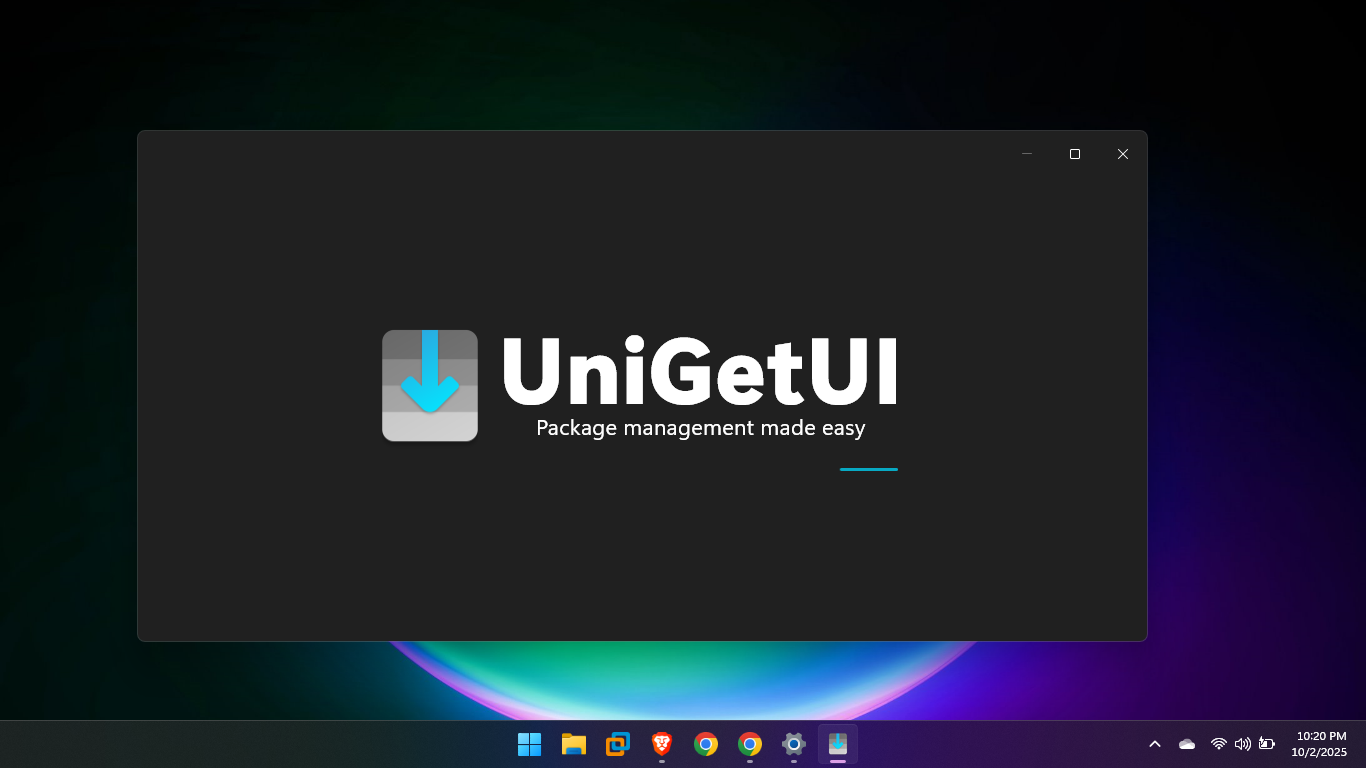
    Installing Software with the GUI – 

    • Click on the “Available Packages” tab.

    • Use the prominent Search Bar at the top. Type the name of the software you need (e.g., “VLC”).
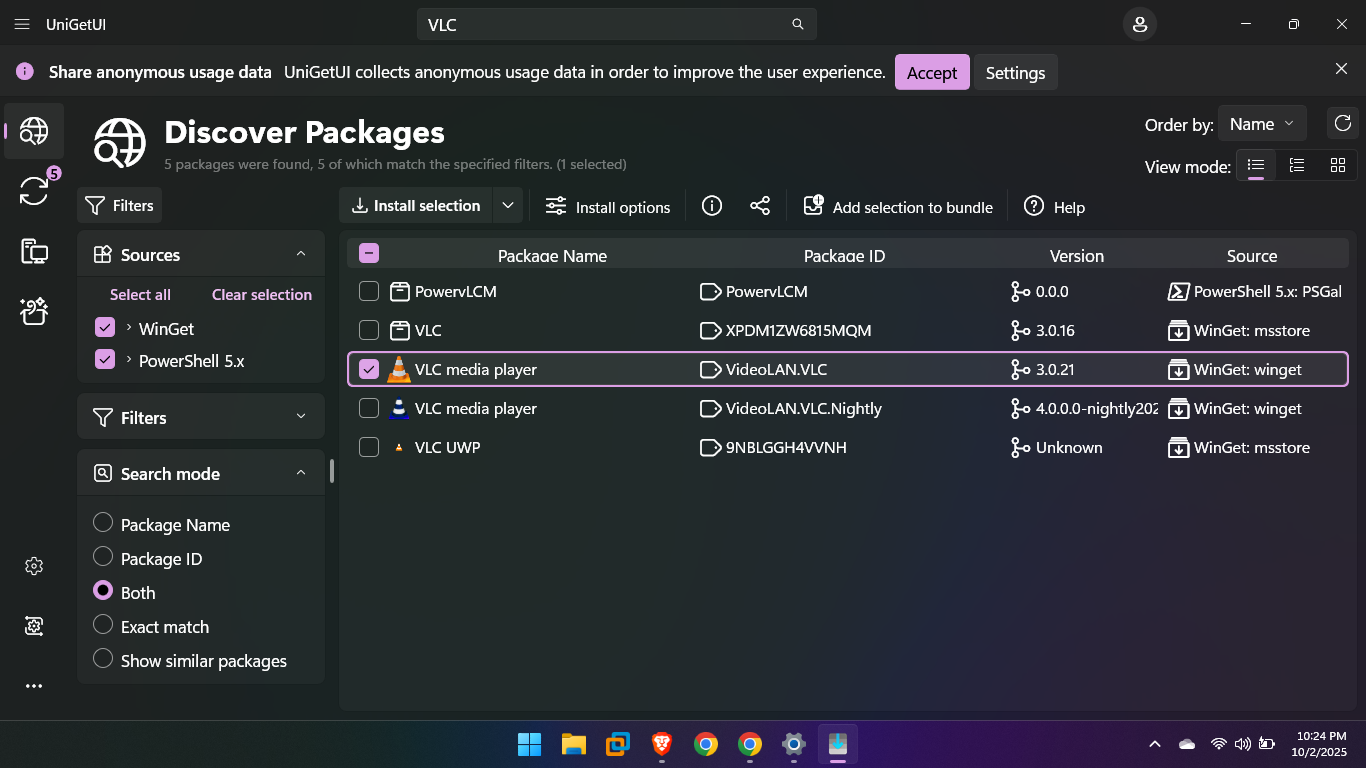
    Select the desired application and keep in mind source should be only (winget or msstore package manager source)

    Click the “Install” button.

    A Pop-up may be come to click Yes or No – Click on Yes
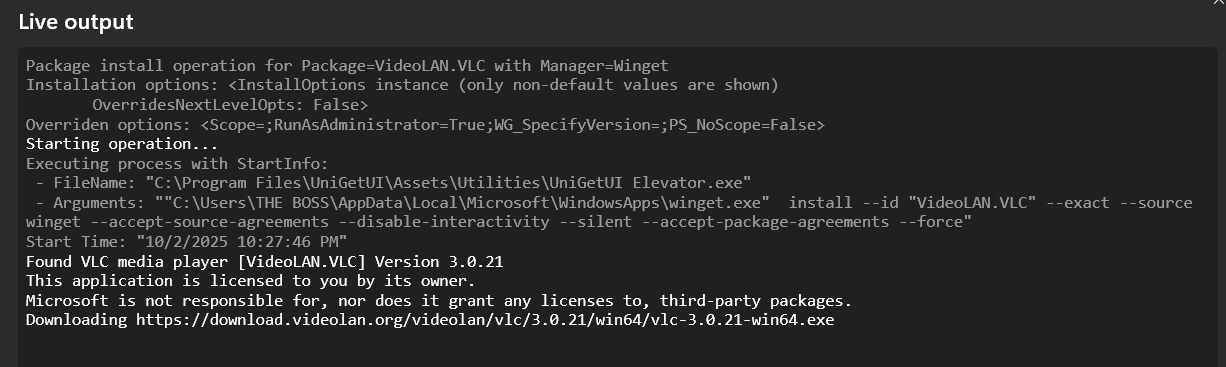
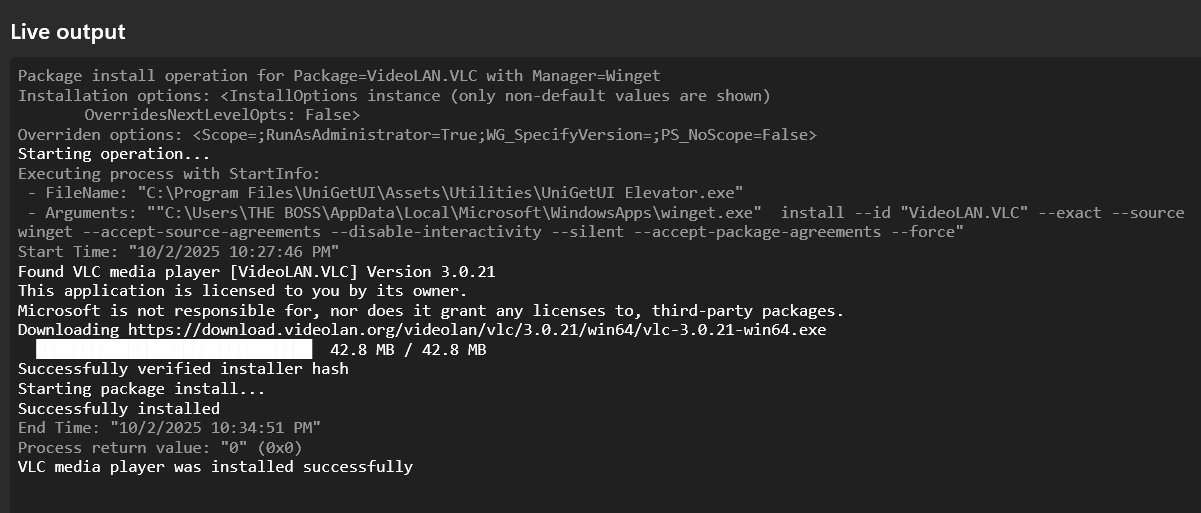
    The application will be downloaded and installed silently in the background without pop-ups. UniGetUI handles the technical details, giving you an instant notification upon completion.
    For Uninstalling

    1. Go to the “Installed Packages” tab.

    2. Find the application you want to remove.

    3. Select it and click the “Uninstall” button. The application will be cleanly removed, utilizing the uninstall logic provided by winget.

    Install Software Windows UniGetUI Windows Package Manager WinGet WinGet GUI
    Share. WhatsApp Pinterest Twitter Facebook LinkedIn Tumblr Email
    Admin
    • Website

    Related Posts

    Disabling and Uninstalling Windows Updates

    October 15, 2025

    Sandbox Explained: Your Secure Digital Playground

    October 7, 2025

    How to download Windows 10 without Windows Media Creation Tool

    September 24, 2025
    Add A Comment
    Leave A Reply Cancel Reply

    Editors Picks
    Top Reviews
    Facebook X (Twitter) Instagram Pinterest YouTube
    • Home
    • Tech
    • Gadgets
    • Mobiles
    • Contact
    • Privacy Policy
    © 2026 MGCourses. Designed by MGCourses.

    Type above and press Enter to search. Press Esc to cancel.
